Fixing Invalid WordPress Password Reset Links in Password Recovery Emails
It’s been a long time since I last updated my blog. Recently, I haven’t had much to write about either. With the long National Day holiday approaching, I decided to write about something trivial. Coincidentally, I thought about changing my WordPress admin password today and discovered a small flaw in WordPress (not really a vulnerability, just a minor bug): when you change your password, the system sends a password reset link to your email address. Everything should have been fine, and the email was received successfully, but clicking the link in the email displayed “Your password reset link appears to be invalid.”
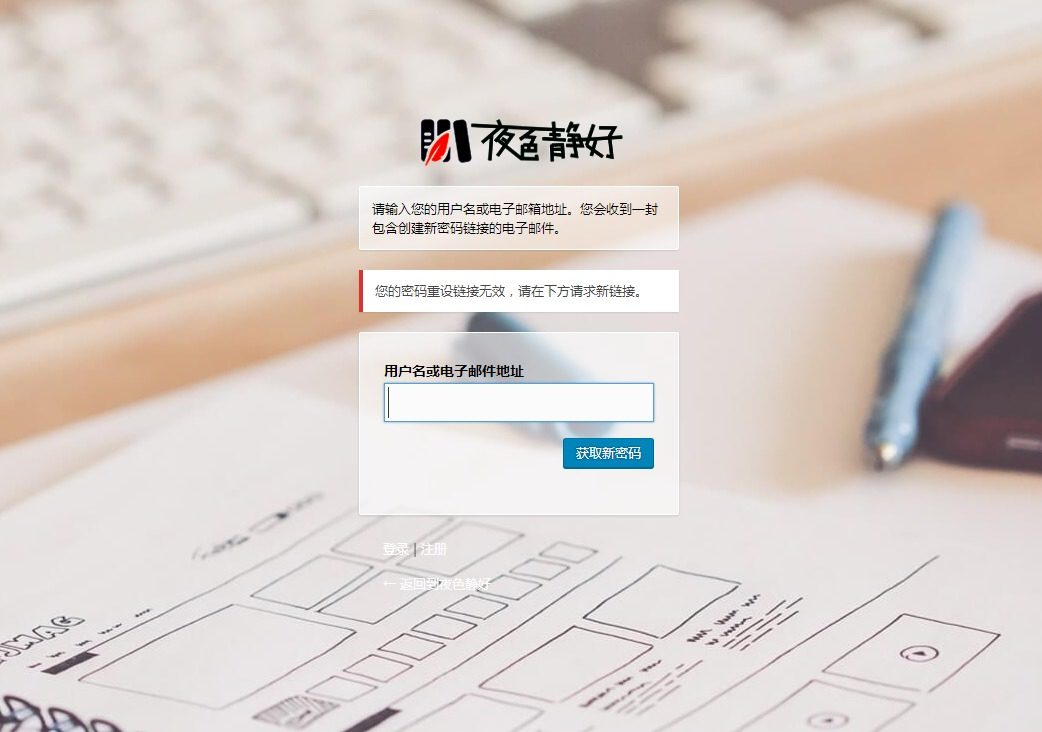
It turns out that there was an extra “>” at the end of the address sent in the email. WordPress originally added angle brackets around the address for aesthetic reasons, but this backfired because the email client parsed them as part of the address. Naturally, the link was invalid when clicked. The solution is very simple; two methods are provided below.
Method One
Insert the following code into the functions.php file in your theme’s root directory.
/**
 * 修复 WordPress 找回密码 bug
 * 注:https://blog.ikxin.com/archives/80.html
 */
function reset_password_message( $message, $key ) {
    if ( strpos($_POST['user_login'], '@') ) {
        $user_data = get_user_by('email', trim($_POST['user_login']));
    } else {
        $login = trim($_POST['user_login']);
        $user_data = get_user_by('login', $login);
    }
    $user_login = $user_data->user_login;
    $msg = __('有人要求重设如下帐号的密码:'). "\r\n\r\n";
    $msg .= network_site_url() . "\r\n\r\n";
    $msg .= sprintf(__('用户名:%s'), $user_login) . "\r\n\r\n";
    $msg .= __('若这不是您本人要求的,请忽略本邮件,一切如常。') . "\r\n\r\n";
    $msg .= __('要重置您的密码,请打开下面的链接:'). "\r\n\r\n";
    $msg .= network_site_url("wp-login.php?action=rp&key=$key&login=" . rawurlencode($user_login), 'login') ;
    return $msg;
}
add_filter('retrieve_password_message', reset_password_message, null, 2);
The drawback of this method is that you need to add the code again after changing themes.
Method Two
Another method is to modify the wp-login.php file in the WordPress root directory.
Find
$message .= '<' . network_site_url("wp-login.php?action=rp&key=$key&login=" . rawurlencode($user_login), 'login') . ">\r\n";
Change it to
$message .= network_site_url("wp-login.php?action=rp&key=$key&login=" . rawurlencode($user_login), 'login') ;
This simply removes the “<” and “>\r\n”. However, this method will stop working after upgrading WordPress because the file will be replaced during the upgrade, requiring you to modify wp-login.php again. Therefore, using the first method is recommended.

Comments
(0)No comments yet. Start the conversation.