Set OneDrive Cloud Drive Sync Backup to Any File Path
During the holidays, I organized some photos and videos from the past two years. I kept a lot of video footage, all of which is very important. To ensure the safety of this data, I need to back it up to the cloud.
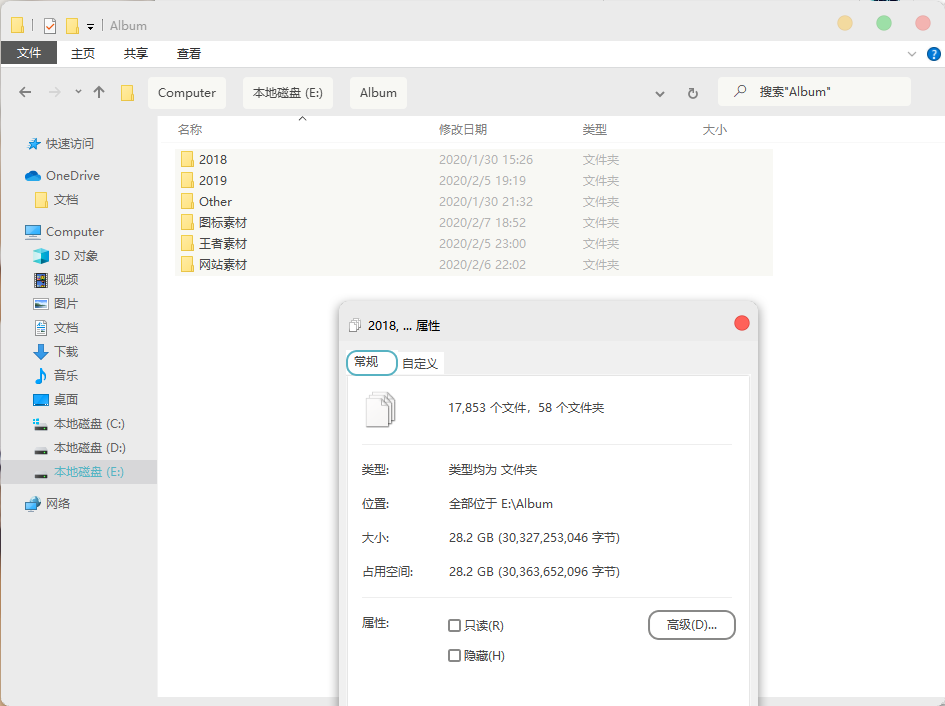
The best sync and backup solution I have used is probably iCloud. Unfortunately, it does not work very well on Windows, so I chose OneDrive.
A default OneDrive account only has 5 GB of storage, which is obviously not enough. Therefore, I subscribed to the Office 365 Family plan, increasing the capacity to 1 TB.
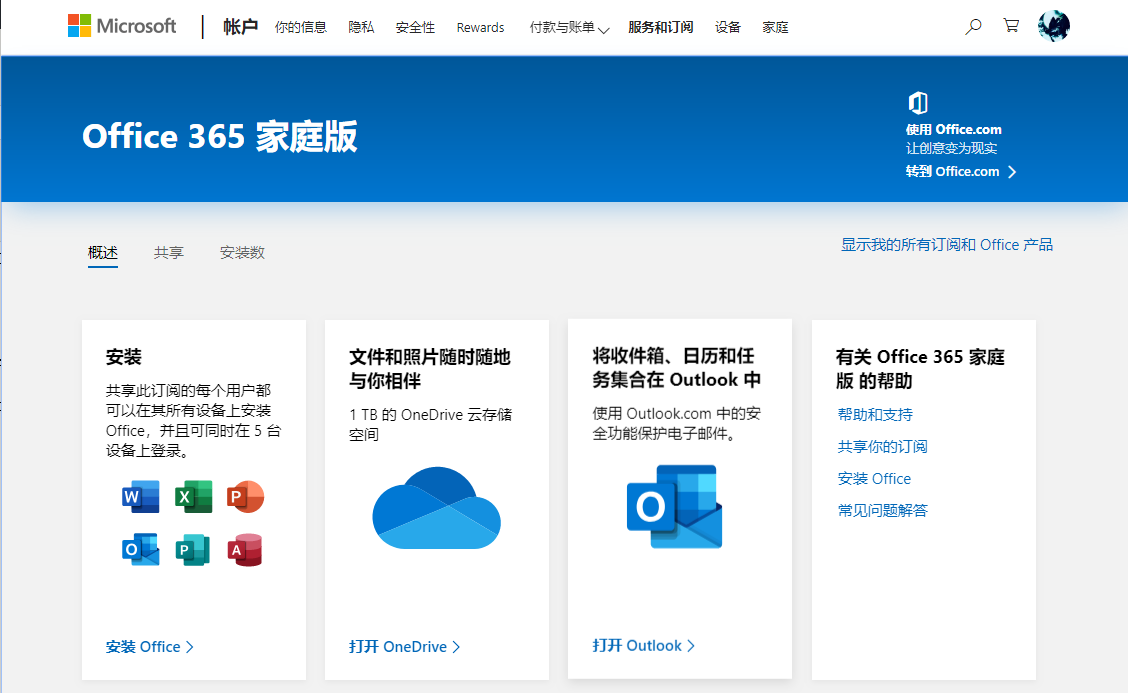
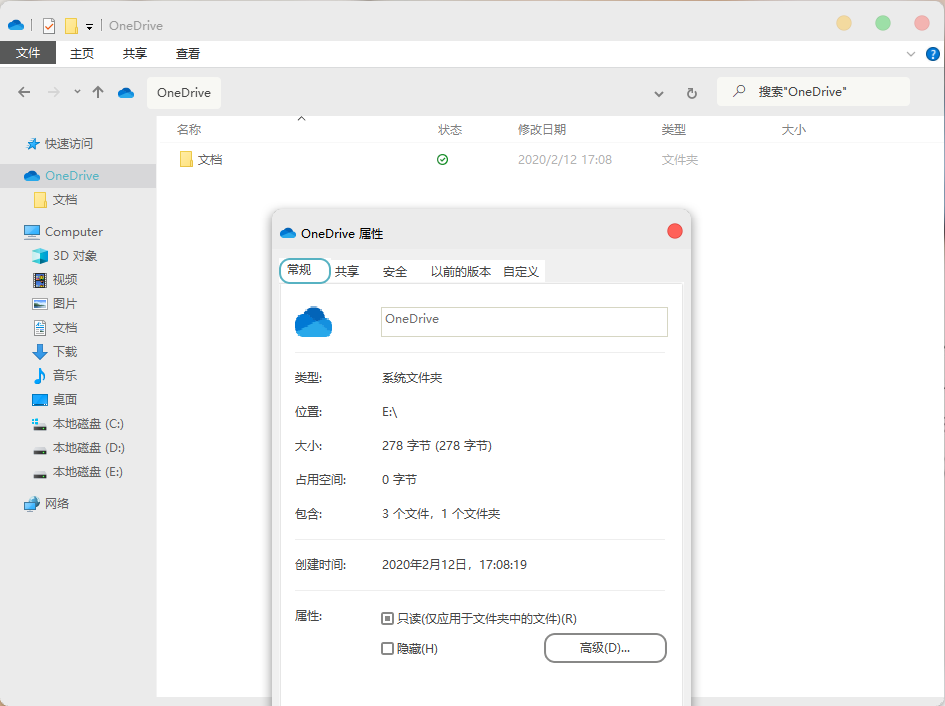
Next, I needed to sync and back up all my data to OneDrive. However, I found that OneDrive could only back up a few default paths, and these paths could not be changed.

These paths are all located on the C: drive. I did not allocate much space to the C: drive because it only stores some system files and software whose installation paths cannot be changed. Therefore, there was no way to put all my media files in these directories.
I have no idea why OneDrive does not allow the backup path to be changed. Fortunately, there is another way to solve this problem: the mklink command.
MKLINK [[/D] | [/H] | [/J]] TargetLink OriginLink
Where:
/D Creates a directory symbolic link; the default is a file symbolic link/H Creates a hard link instead of a symbolic link/J Creates a directory junctionTargetLink is the target pathOriginLink is the original pathFor example, if I want to back up the E:\Album path to OneDrive, I would write:
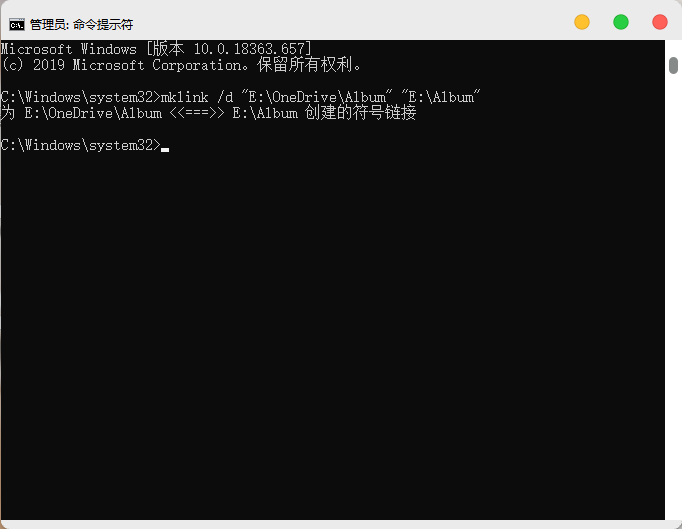
mklink /d "E:\OneDrive\Album" "E:\Album"
E:\OneDrive is the path to OneDrive.
Open the CMD command line. It must be opened in administrator mode. Enter the command and press Enter. If the following content appears, everything is correct.
You can then see that the files to be backed up are already in the OneDrive directory. Wait for synchronization to complete.
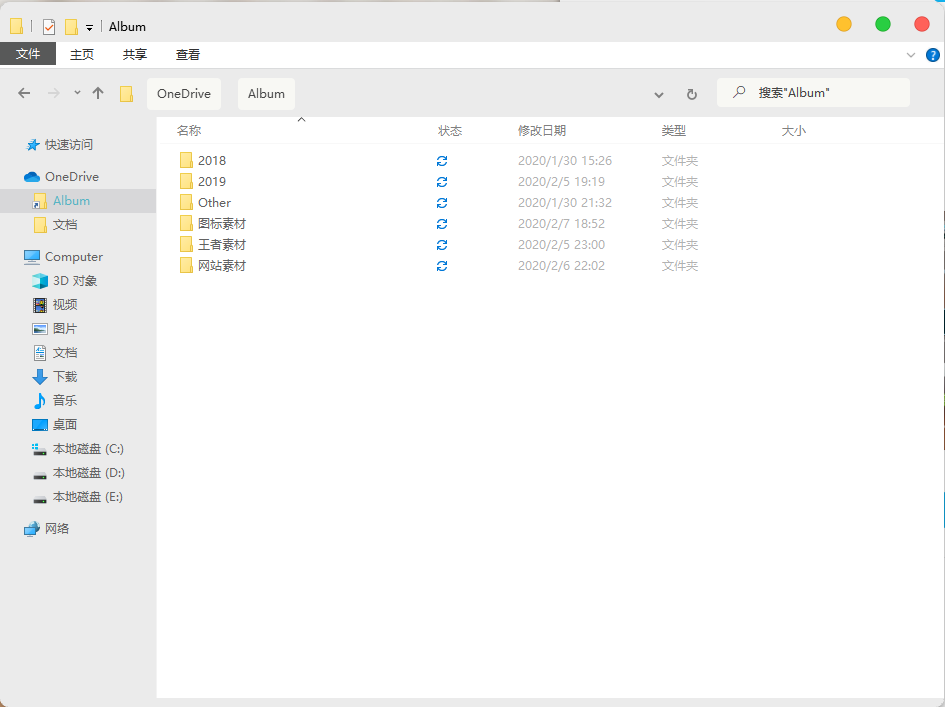
Two points should be noted. First, there is no need to create the directory in the OneDrive directory beforehand; create it directly with mklink. Second, if the folder path contains spaces, simply enclose it in quotation marks.
Comments
(6)wow一直很喜欢你的博客,请问这个Windows的UI是怎么改的分享一下吧
教程文章 https://zhutix.com/study/win10-jc/ 主题文件 https://www.lanzous.com/i7jzt3i 主题介绍 https://zhutix.com/pc/iconadams-vs/
您是在哪使用的mklink指令呀,请原谅我这个菜鸟找不到?
是CMD是嘛,打扰了 ::aru:shy::
是的呢,就是cmd
贼溜,用上了,很好用,谢谢科普~~