Creating a Website Friend Links Sidebar with the Flarum Ads Plugin
Let's start with a demonstration image to see the effect, then I'll explain how to set it up:
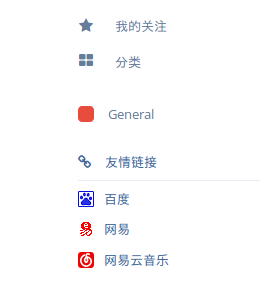
- Enable the Ads plugin in the admin panel (What? You uninstalled it? Then I have to say goodbye to you).
- On the Ads settings page, under the ad placement below the Home left-side node area, enter the following sample code in the code input box:
<div class="sideNav links">
  <a>
    <i class="fa fa-link Button-icon"></i>
    <span class="Button-label">友情链接</span>
  </a>
  <li class="Dropdown-separator"></li>
  <ul class="links-list">
    <li>
      <img src="" width="16" height="16" />
      <a href="https://www.baidu.com/" target="_blank">百度</a>
    </li>
    <li>
      <img src="" width="16" height="16" />
      <a href="http://www.163.com" target="_blank">网易</a>
    </li>
    <li>
      <img src="" width="16" height="16" />
      <a href="http://music.163.com" target="_blank">网易云音乐</a>
    </li>
  </ul>
</div>
The example adds three websites. For each website, you need to change three things: the two URL links and the icon link, as well as the website name. Taking changing the Baidu link to this site as an example:
Before:
<li><img src="https://a.5e.cx/getFavicon/?url=https://www.baidu.com/" width="16" height="16" /><a href="https://www.baidu.com/" target="_blank">百度</a></li>
After:
<li><img src="https://a.5e.cx/getFavicon/?url=https://www.ikxin.com/" width="16" height="16" /><a href="https://www.ikxin.com/" target="_blank">Notte博客</a></li>
Note: To modify the first link, change the part after https://a.5e.cx/getFavicon/?url=. This link is used to retrieve the website icon, so be careful not to delete it by mistake. Also, if you have no HTML experience, note that the complete code for each website starts with <li> and ends with </li>.
If you think three friend links are too few, follow the method above (a text editing tool is recommended), finish writing them, and paste them at </li>这里</ul></div> at the end of the entire code (that is, each time you add one, just place it before </ul>).
- One very important step: after completing the second step, go to Admin panel - Appearance settings - Custom styles, click the button, enter the following code, and save it:
.links {margin-top: 10px;}
.links .links-list {margin-top: 10px;}
.links .links-list a {position: absolute; margin-left: 10px; line-height: 16px;}
At this point, the entire tutorial is complete.
What? You want to place an ad image after the friend links? Can't you just paste your ad image code after my code?
Here's an additional custom style. Since this friend links module is displayed directly above the homepage when browsing on a phone and can be distracting, add this CSS to hide it on mobile devices:
@media (max-width: 995px) {
  .item-flagrow-ad .sideNav {display: none !important;}
}
Comments
(0)No comments yet. Start the conversation.