How to Make a Hackintosh More Consistent with Windows Usage Habits
The macOS Catalina 10.15.4 system was installed in the previous illustrated guide. Next, some personalized settings are needed to use this Hackintosh system more comfortably. Here, “comfortably” refers to making it more consistent with Windows usage habits. If you already have experience and established habits with macOS, there is no need to perform these personalized settings.
First, the newly installed macOS system has nothing on it, and the Hackintosh cannot drive the built-in network card of the Xiaomi Notebook Pro. Therefore, the first step is to install the network card driver, as having an Internet connection is the foundation for other operations. Here, I chose to use a USB network adapter (model: Comfast 811ac), and then installed its driver.
Network Card Driver
Project address: https://github.com/chris1111/Wireless-USB-Adapter-Clover
Download address: https://cloud.ikxin.com/#/s/bQc0
Download the network card driver in Windows and save it to a USB flash drive. Insert the USB flash drive into macOS, drag the network card driver to the desktop, and double-click it to open and extract it.

This driver is basically compatible with most USB network adapters available for purchase, and the supported models are also listed in the instructions.
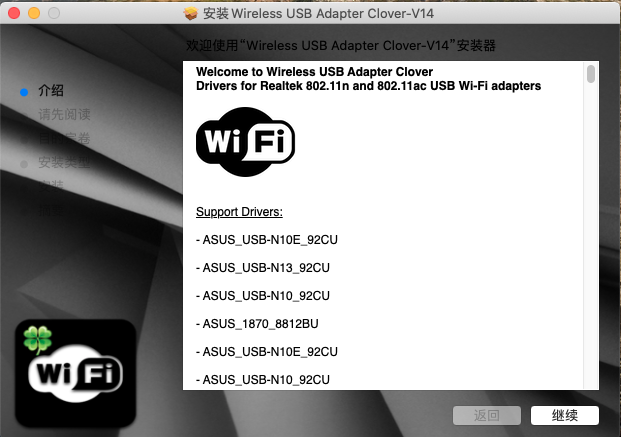
Select the first option to install the driver.

After installing the driver, you need to restart the system for it to take effect. When restarting the system, remove the USB flash drive and insert the USB network adapter.
After restarting, you can see that the Wi-Fi icon has appeared in the status bar. Connect to the network.
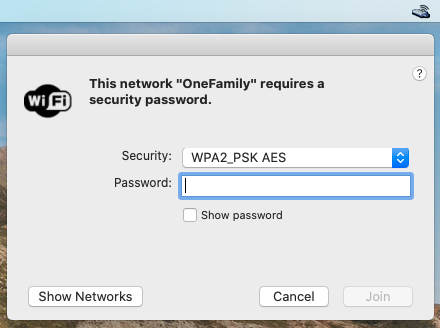
In 系统偏好设置 - 网络, make sure that the status is shown as connected.

Allow Apps from Any Source
By default, macOS only allows software from trusted developers and the App Store to be installed. If you want to use software from other third-party sources, you need to disable this security setting.
Open Terminal and enter:
sudo spctl --master-disableYou will then be prompted to enter your password. Note that the password is not displayed while you type it; simply press Enter confidently after finishing.

Modifier Keys
In Windows, keyboard shortcuts generally use Ctrl + *, while macOS keyboard shortcuts generally use Command + *. On a Hackintosh, the position of Command corresponds to the Win key in Windows, so you need to configure the modifier keys in 系统偏好设置 - 键盘.

Simply swap Command and Control.
Mouse Scrolling

Deselect 滚动方向:自然, following Windows usage habits as well.
Adjust the Time Zone
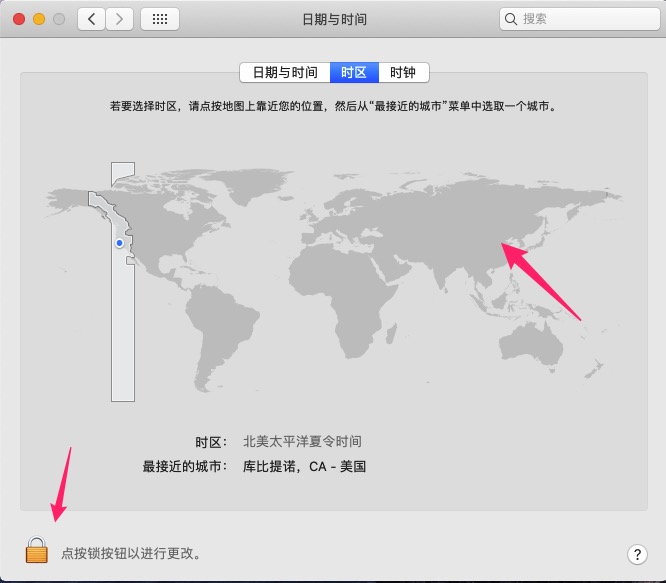
The system's default time zone is set to the United States. Change it to the Beijing time zone here. Before making the change, click the unlock button in the lower-left corner.
Finder Settings
Finder corresponds to File Explorer in Windows. In Finder's preferences, select the disk option, and a disk icon will appear on the desktop. Opening it displays the files on the disk, corresponding to “This PC” in Windows.

Time Synchronization
If you find that the time is incorrect in Windows after installing the Hackintosh, you can add a line to the registry:
[HKEY_LOCAL_MACHINE\SYSTEM\CurrentControlSet\Control\TimeZoneInformation]"RealTimeIsUniversal"=dword:00000001Trackpad
Disable smart zoom to improve the efficiency of using the trackpad.

Switching Between Uppercase and Lowercase

Deselect 使用大写锁定键切换输入模式. Afterward, when uppercase letters are needed, use Control + 空格 (that is, Win + 空格) to switch input methods.
Comments
(5)一直以为苹果系统不需要重启就能生效,哈哈哈,原来和巨硬系统一样垃圾。
怎么联系站长啊?请站长加一下我QQ962628536,换一下友联!
您是想换wingblog.cn这个站的友链吗? 如果是的话实在抱歉,暂时只接受博客类网站
黑果终究是不太好用,还是原生的苹果更有感觉,不过日常工作还是离不开windows的,比如做网站,做推广,有些工具只有windows有。
习惯问题吧,不过确实是windows上面的软件多一些