The new semester’s programming design course has officially begun, and it has also been a long time since I last opened VC 6.0 to write C code. Actually, I didn’t particularly like this IDE when I first started learning C. Not only does it have few features, but it also frequently shows errors such as cl.exe being missing. It is especially troublesome to use, but unfortunately, our teacher only teaches us to use this outdated software.
So I looked into some other C language development software and tried Dev-C++ and VS 2019. The former is about the same as VC 6.0, though it looks slightly better. The latter can be said to be the most powerful IDE for C/C++ development, but its software ecosystem is simply too large and it consumes a lot of resources.
Finally, there is a relatively simple IDE called CLion, made by JetBrains. However, I encountered quite a few problems during the installation process.

Installation
A few days ago, I wrote an article on 「Installing and Configuring IntelliJ IDEA on Windows 10」. I’ll directly follow the same process here. It should be noted that CLion is commercial software, unlike IDEA, so there is no Community Edition.
Open the official download page: https://www.jetbrains.com/zh-cn/clion/download

Begin installing CLion
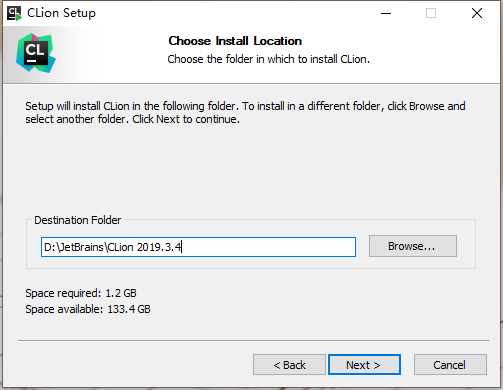
As usual, I changed the path to make version management easier (Did anyone who read the previous article notice that my disk has gotten bigger? Hahaha 😭)
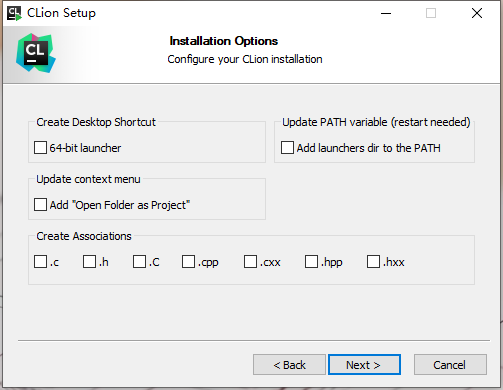
I’m used to leaving all file extensions unassociated
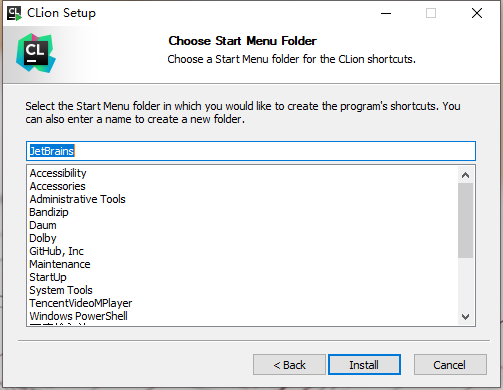
The installation is starting
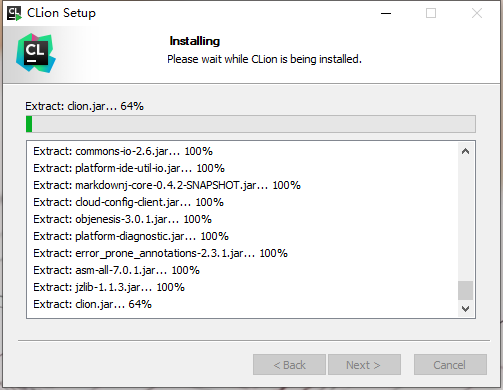
Done. Check Run CLion and click Finish to continue configuring it
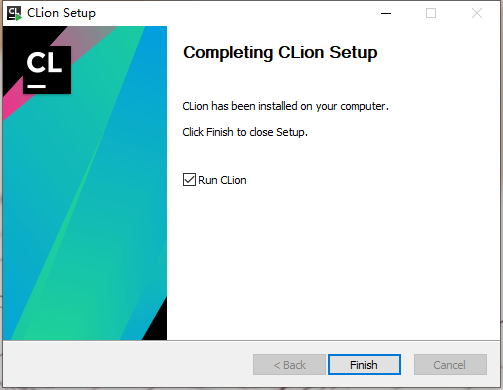
That’s right, I don’t have a configuration file. Select Do not import settings
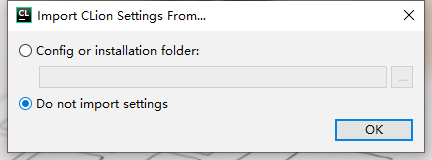
There is a new user agreement here, and you must agree to it before you can continue using the software (Be sure to remember that CLion is commercial software. If you use it commercially for a company, never download a cracked version, or you may receive a lawyer’s letter.)

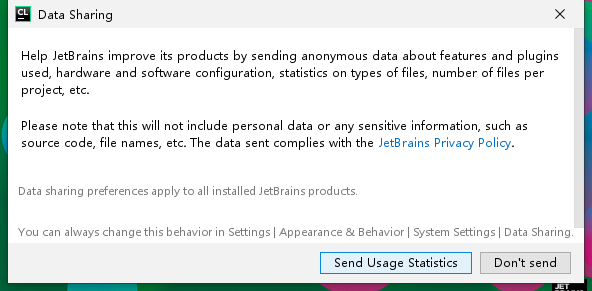
Next, it asks to collect some usage reports. If you don’t have any privacy concerns, go ahead and agree
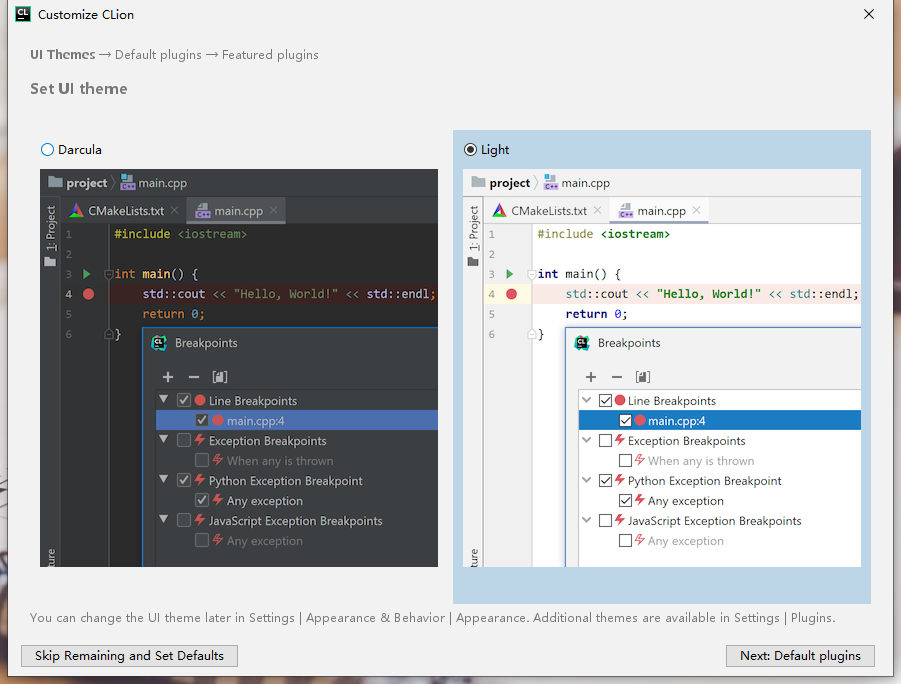
Choose a theme. Light is not too uncomfortable to look at
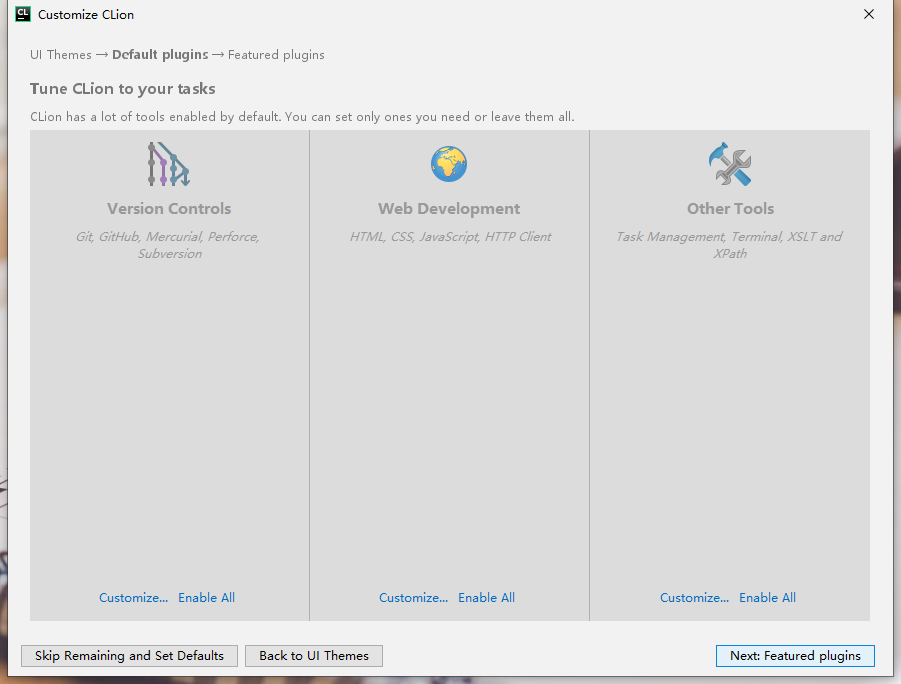
Configure the components. Since none of them are useful to me, I’ll turn them all off
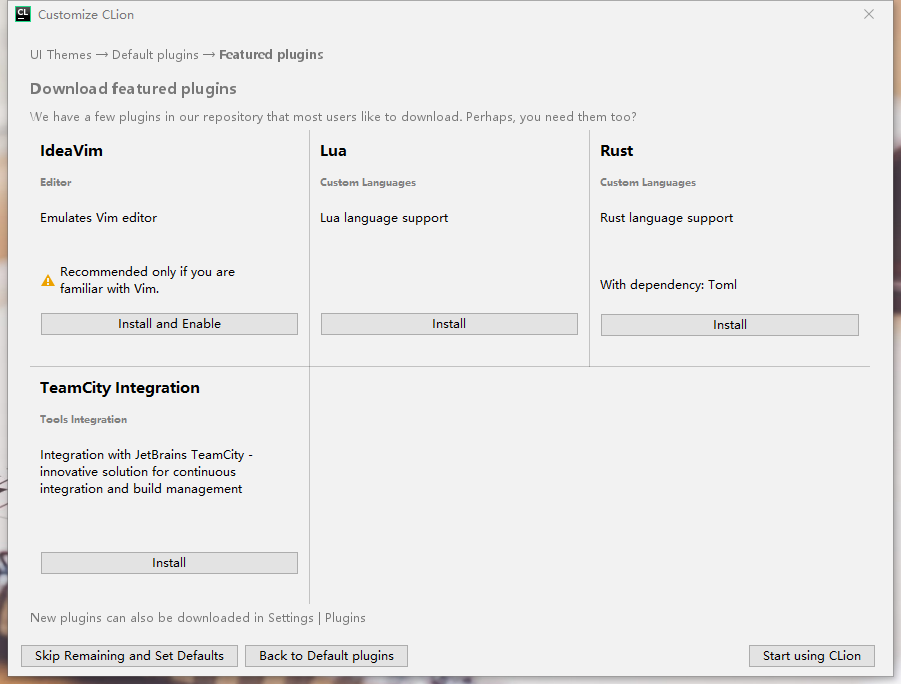
Let’s leave all the plugins uninstalled by default as well and download them later if needed
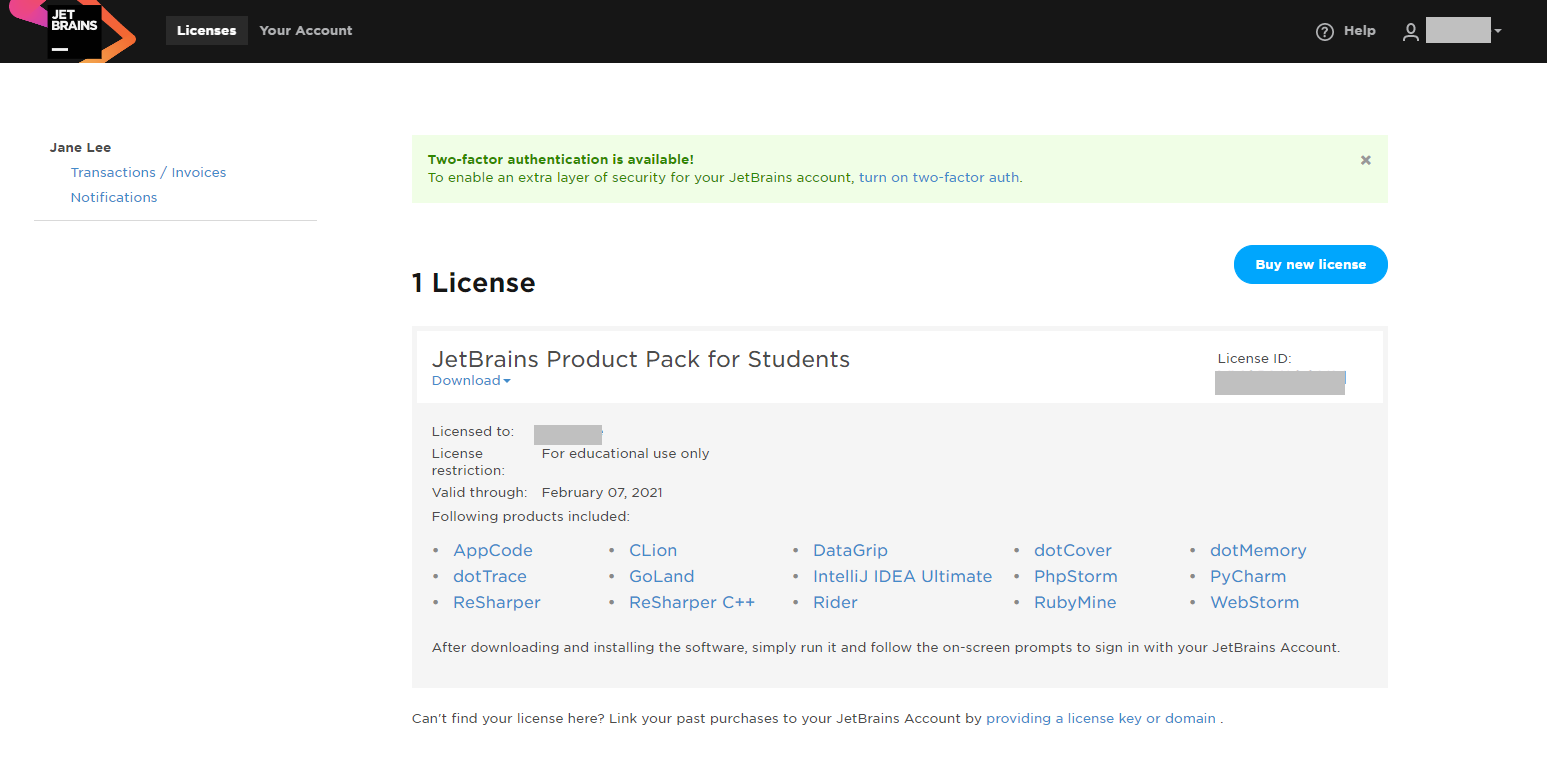
Next is some information related to licensing. If you don’t have a license, you can select Evaluate for free and use it for a while
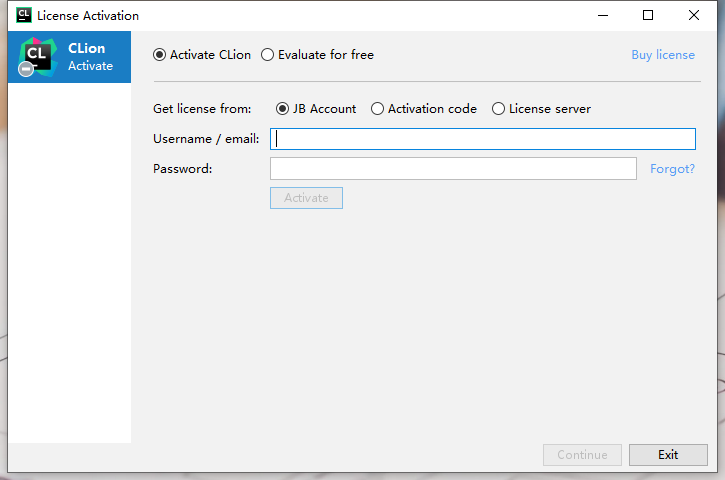
Fortunately, I have a student license, hahaha 😄
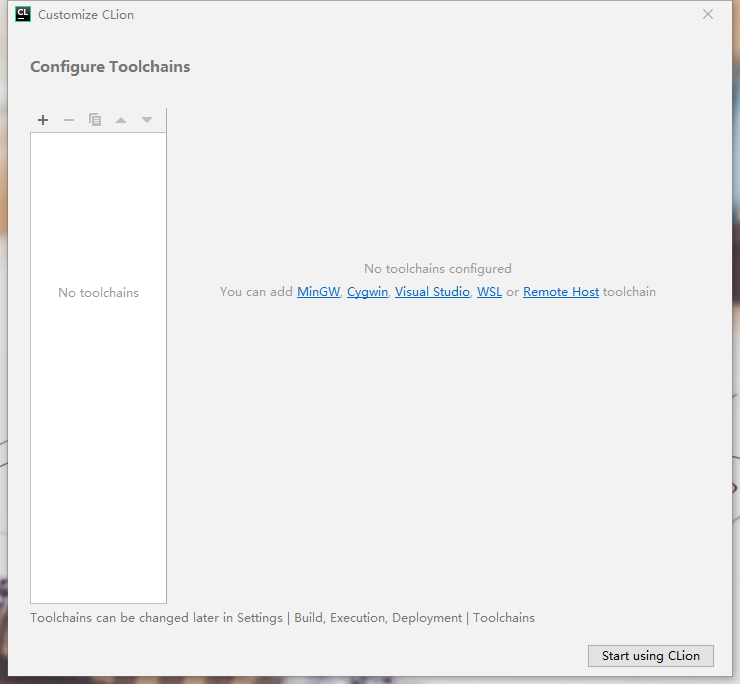
MinGW
Next comes the part that wasted the most time for me throughout the whole process. Here, you need to configure MinGW, Cygwin, Visual Studio, WSL, or Remote Host. You only need to choose one, and I chose MinGW, then happily went to download it
As it turned out, the MinGW official website provided a very small executable file, which I didn’t realize was an online installer. It connected to overseas servers and downloaded at a speed of only a dozen KB per second. After half an hour, the progress bar had not even reached halfway, and I was nearly dumbfounded. Even using a VPN couldn’t speed it up
After reading many similar articles, I finally found a solution. Open https://sourceforge.net/projects/mingw-w64/files/Toolchains%20targetting%20Win64/Personal%20Builds/mingw-builds/
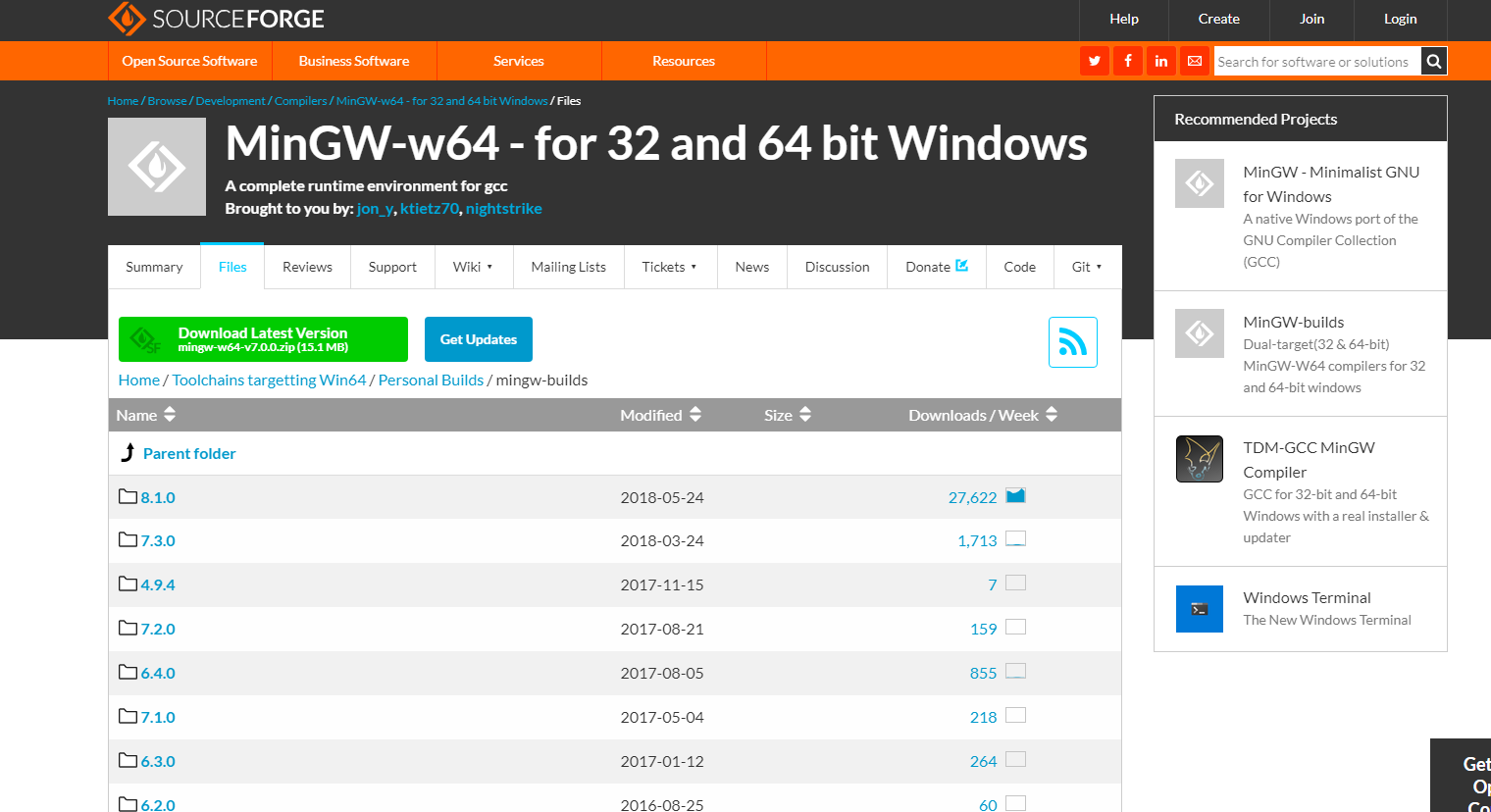
Do not click the green Download button. Scroll down to find x86_64-posix-sjlj and download it
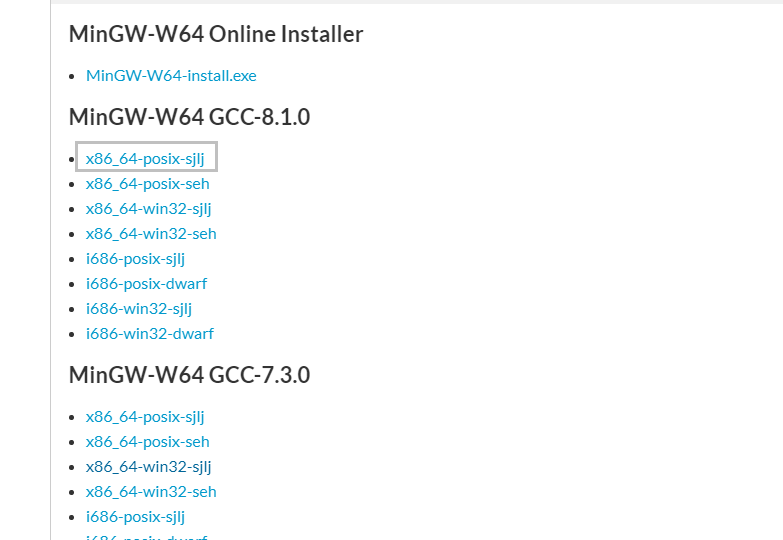
The files are explained below:
- MinGW-W64-install.exe: Online installer
- x86_64 is the version for 64-bit systems
- i686 is the 32-bit version
- A suffix of seh indicates pure 64-bit compilation
- A suffix of sjlj supports both 32-bit and 64-bit compilation, and requires the -m32 or -m64 parameter
- posix is generally used for cross-platform development and has somewhat better compatibility than win32
After downloading, you will have a 7z archive. Extract it and place it in a non-desktop path, then add a MinGW in CLion and select the path mentioned above
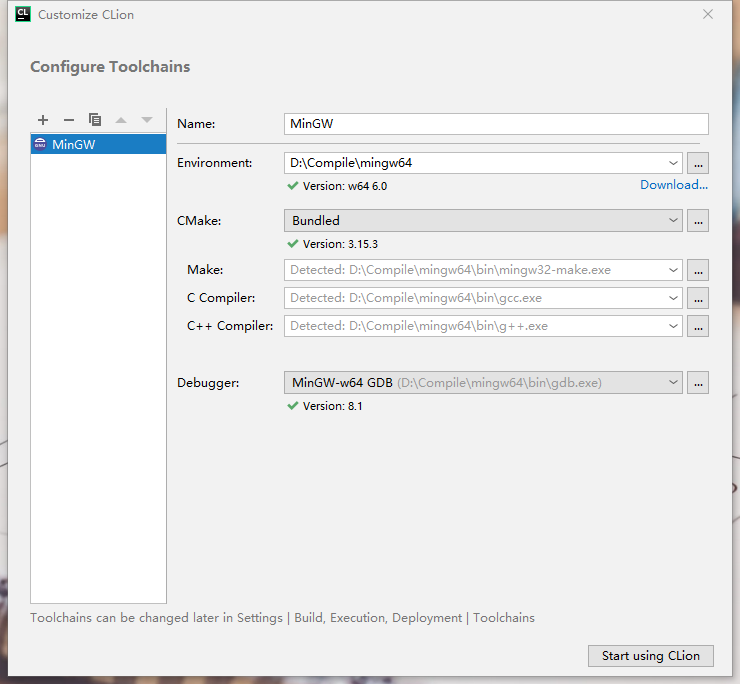
Finally, you can click Start using CLion