During the holiday, I organized some photos and videos from the past two years. I kept a lot of video footage, all of which is very important. To ensure the safety of this data, I need to back it up to the cloud.
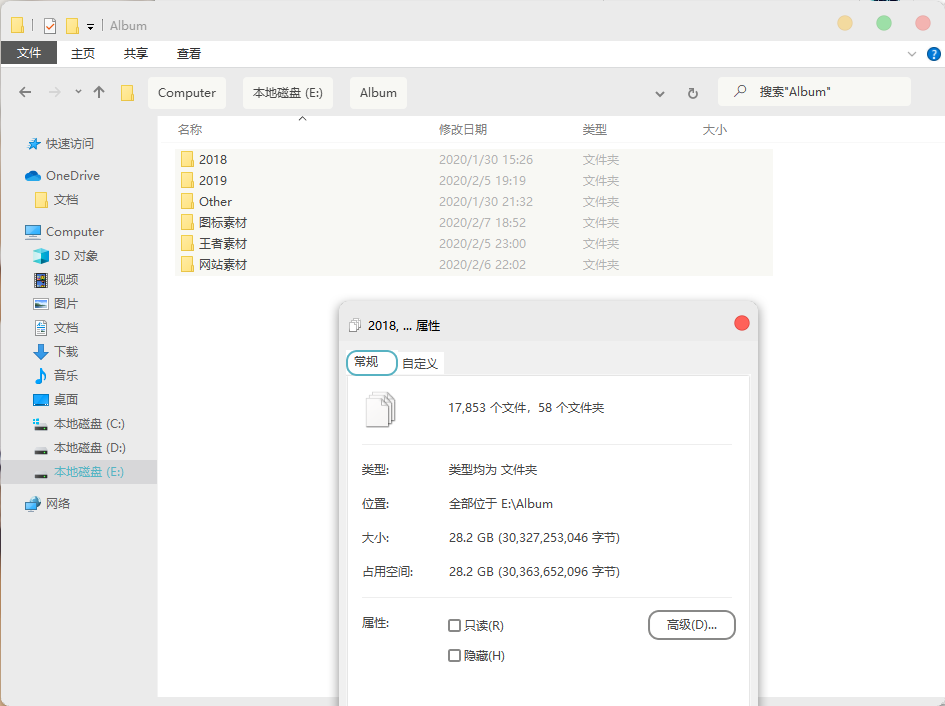
The best sync and backup solution I have used is probably iCloud. Unfortunately, it does not work very well on Windows, so I chose OneDrive.
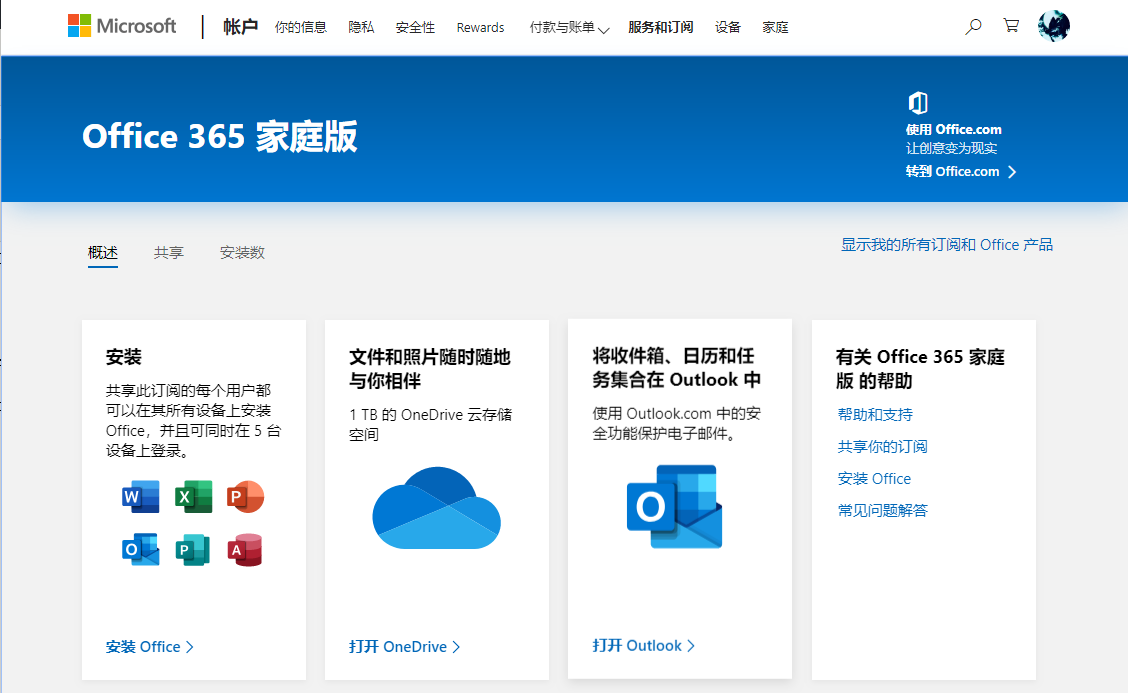
A default OneDrive account only has 5 GB of storage, which is clearly not enough. So I subscribed to the Office 365 Home plan and upgraded to 1 TB of storage.
Next, I wanted to sync and back up all my data to OneDrive. However, I discovered that OneDrive can only back up a few default paths, and they cannot be modified.

These paths are all located on the C: drive. I allocated little space to the C: drive because it only contains some system files and software whose installation paths cannot be changed. Therefore, there was no way to put all my media files in these directories.
I don't know why OneDrive does not allow the backup paths to be changed. Fortunately, there is another way to solve this problem: the mklink command.
MKLINK [[/D] | [/H] | [/J]] TargetLink OriginLink
Here:
/D 创建目录符号链接,默认为文件符号链接
/H 创建硬链接,而不是符号链接
/J 创建目录联接
TargetLink 为目标地址
OriginLink 为原始地址
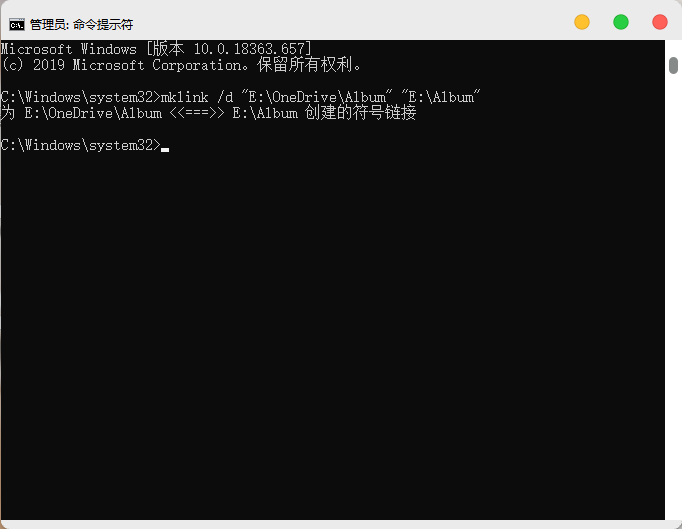
For example, if I want to back up the E:\Album path to OneDrive, I would write it like this:
mklink /d "E:\OneDrive\Album" "E:\Album"
E:\OneDrive is the path to OneDrive.

Open the CMD command prompt. You must open it in administrator mode, then enter the command and press Enter. If the following content appears, it means everything is correct.
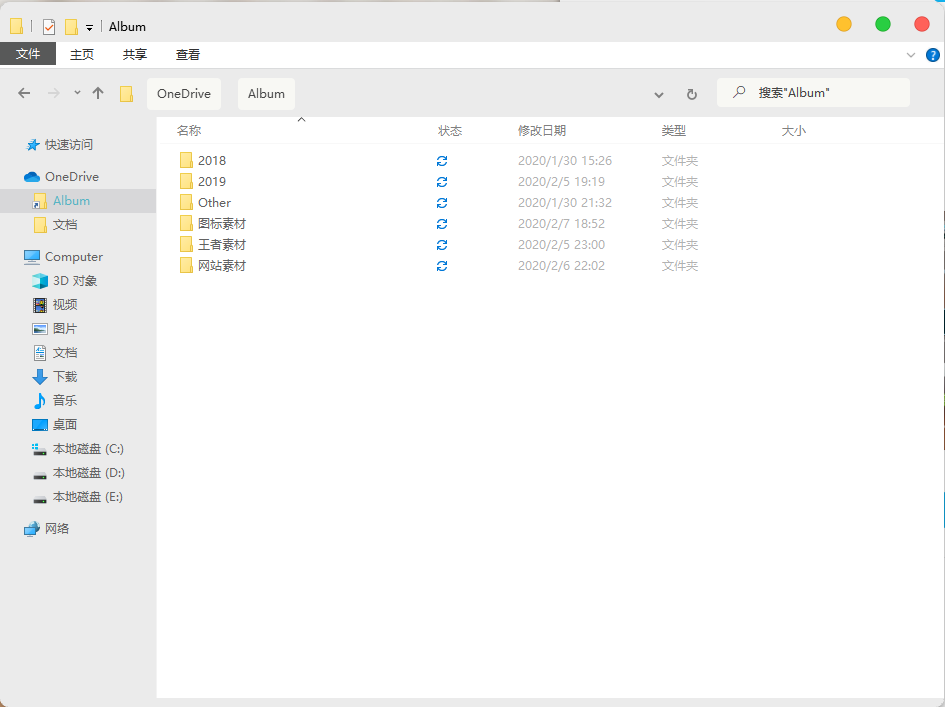
You can then see that the files to be backed up are already in the OneDrive directory. Wait for synchronization to complete.
There are two things to note. First, you do not need to create the directory in the OneDrive directory in advance; just create it directly with mklink. Second, if the folder path contains spaces, enclose it in quotation marks.